
How to add your business to Google Maps without creating a duplicate
 Viktoriia Repetuk
Short answer. First, look for your business on Google Maps by name, phone number and address. If there is no listing, create a profile at business.google.com/add and complete verification. If the listing exists and shows a “Claim this business” line, claim it. If someone else has already verified the profile, send the owner an access request.
Each business can have only one profile. Google does not show a duplicate profile on Search or Maps (Help article “Resolve duplicate profiles & ownership issues”). We checked the rules against Google’s Help Center on 19 November 2026. The same day we took screenshots of public Google pages while signed out, so the buttons and labels you see may differ.
First, check whether a profile already exists
Your business may already be on Maps even if you never added it. Google updates business information from several sources, including reports from users (Help article “Get started with Google Business Profile”). A former marketer or an ex-partner may also have created the listing.
How to search:
- Open Google Maps in an incognito window. You will see the listing the way customers see it. Google’s own Help Center gives this tip.
- Enter the business name and city.
- Repeat the search by phone number and by address. The listing may have been created under another name.
- Check old business names and spellings in other alphabets.
- For a chain, check each address separately.
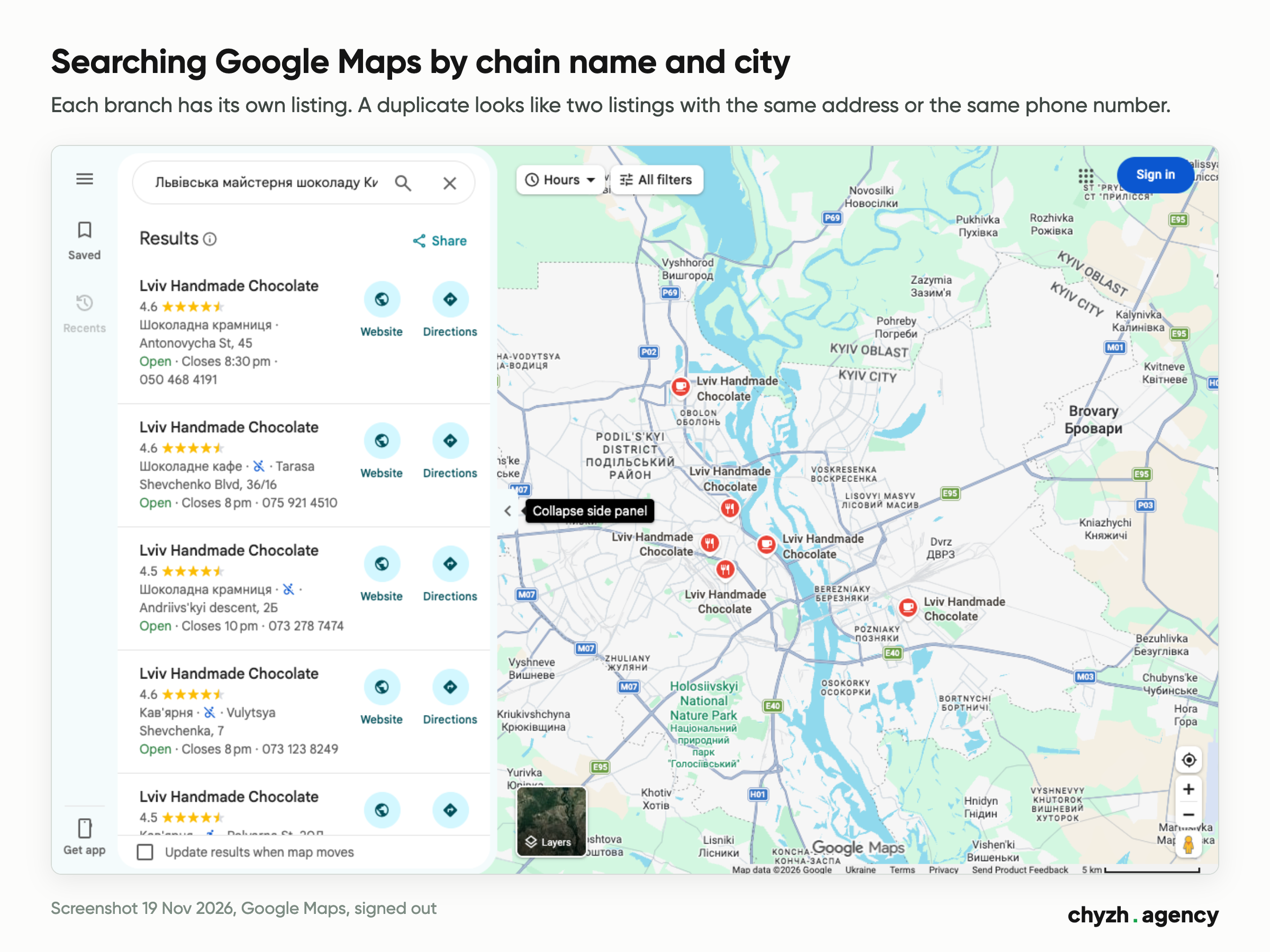
The screenshot shows a search by chain name and city. Each branch has its own listing with its own address and phone number. In a list like this, a duplicate looks like two listings with the same name at one address or with one phone number.
For a profile you already manage, the Help Center says to search while signed in to the Google Account linked to it: search “my business” on Google or open business.google.com (Help article “Find your business on Google”). If your company uses several Google Accounts, check each one. The guidelines allow one page per location even if you have several accounts.
Five situations: create, claim or request access
What you find decides the next step. The table follows Google’s Help Center as of 19 November 2026.
| What you see | What to do | Google Help |
|---|---|---|
| No listing by name, phone number or address | Create a profile at business.google.com/add | Add or claim your Business Profile |
| A listing exists and shows “Claim this business” | Claim this listing and complete verification. Do not create a new one | Claim an unverified business |
| A listing exists, the line is missing, and Google says “Someone else may manage this Business Profile” | Send the owner an access request. The owner has 3 days to respond | Request ownership |
| You accidentally created a second profile for a business you already verified | Remove the extra profile from your account | Duplicate profiles |
| Maps shows two listings for one business | Suggest a merge through “Suggest an edit” on Maps | Duplicate profiles |
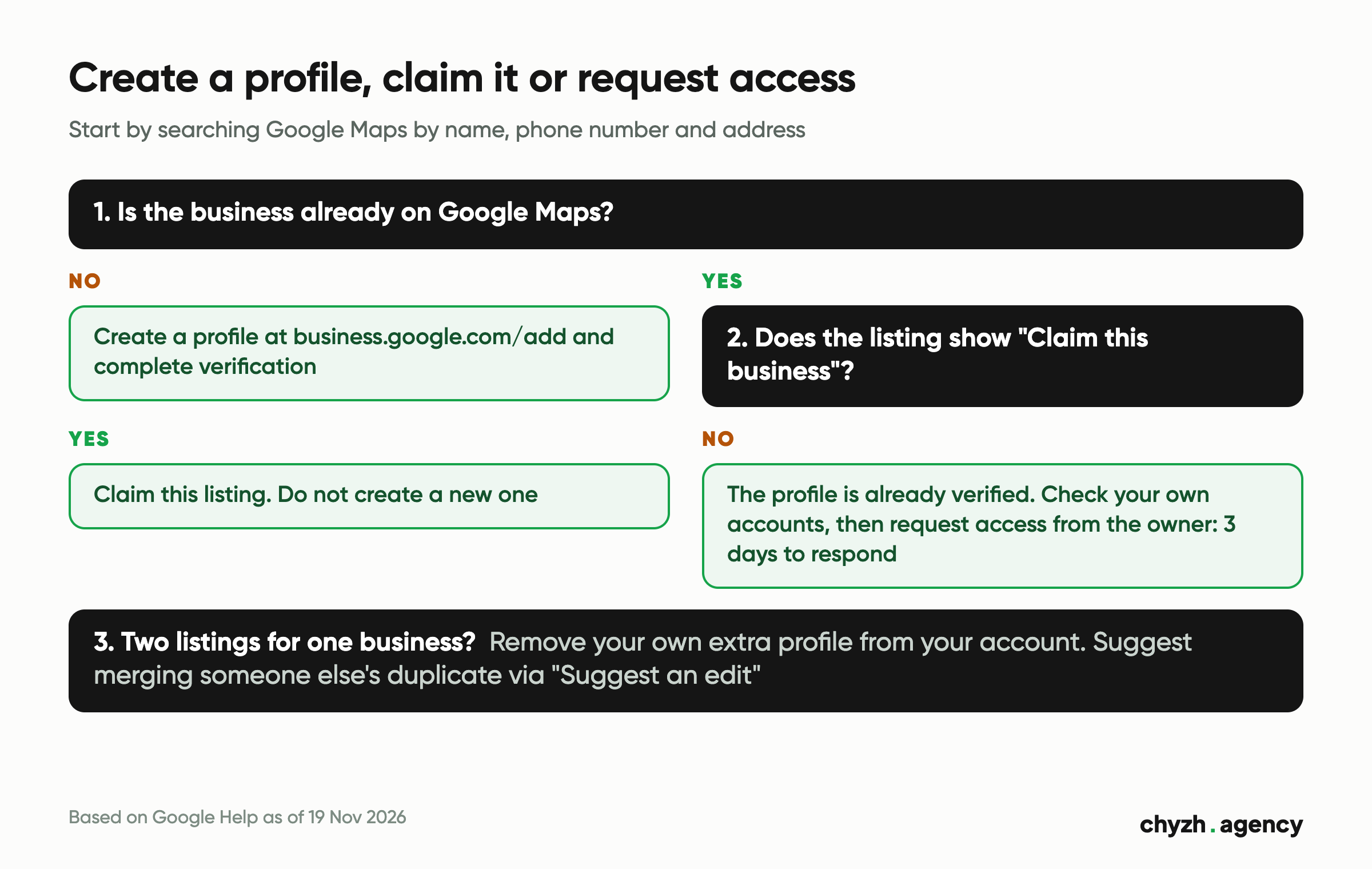
An unverified listing in the public Maps interface looks like the screenshot below. Below the contact details there is a “Claim this business” line. Through it the owner claims the existing listing instead of creating a new one.
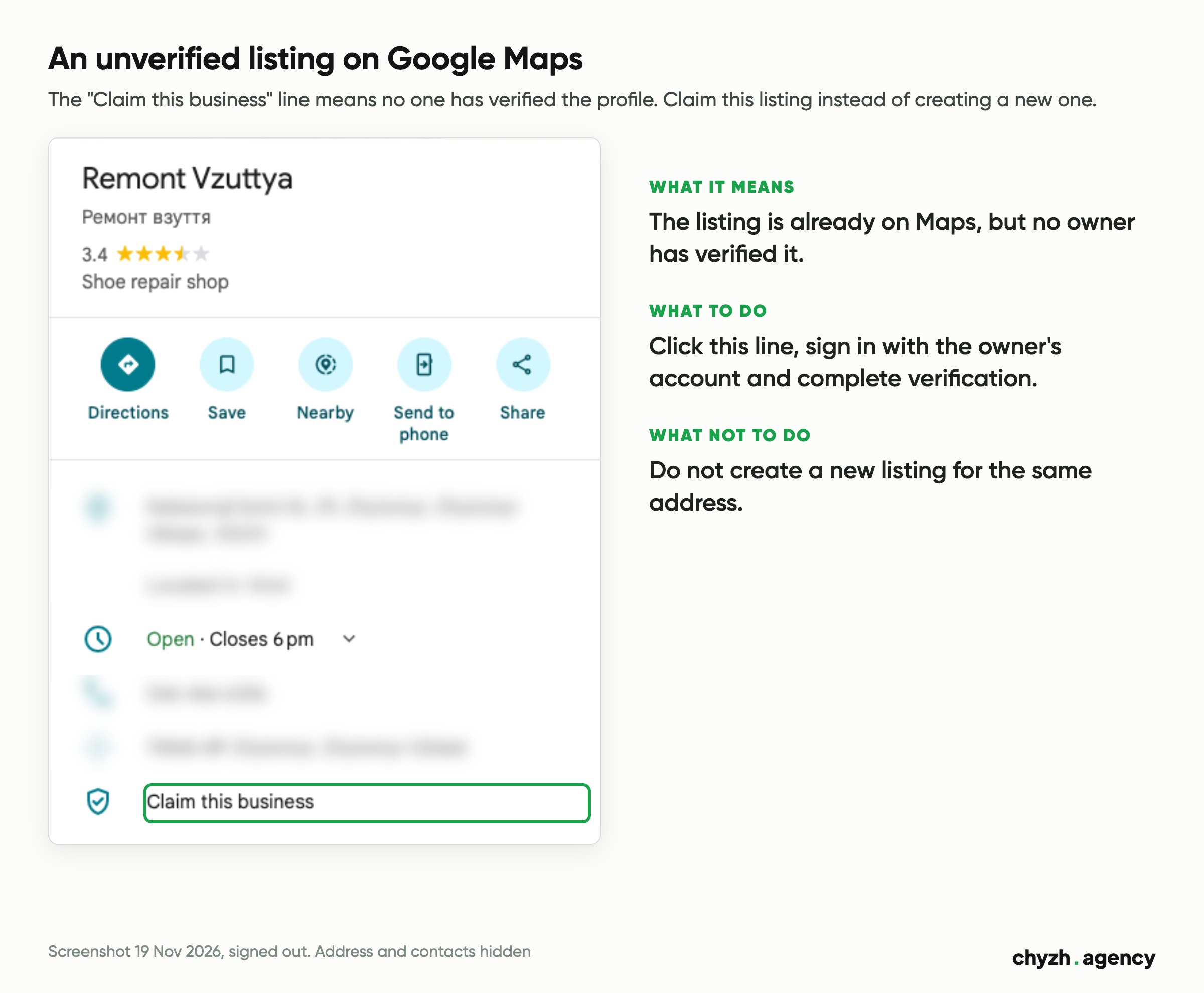
If the line is missing, the Help Center suggests first checking whether you already own the profile. If someone else owns it, send an access request. You will get a confirmation email, and the owner will be notified. If the owner approves, you can manage the profile. If the owner denies it, you can appeal or suggest edits to the listing. If the owner does not respond within 3 days, you may get the option to claim the profile yourself. The Help Center warns that this option is not always available.
A business that only serves customers at their location and has no office cannot use this request form. The Help Center says to contact Google support and choose the description about transferring page ownership.
Who can have a Business Profile
A profile can be created by businesses that serve customers in person during their stated hours: at their own address or at the customer’s location (Help article “Business eligibility and ownership guidelines”).
A profile is not allowed for:
- businesses that operate only online;
- rental or for-sale properties (a sales or leasing office can have a profile);
- lead generation agents and companies;
- an address that is only a PO box or mailbox.
Several more rules from the guidelines for representing your business deal directly with duplicates:
- Virtual office. If you rent a mailing address but do not work there, you cannot create a profile for it. A coworking space qualifies only if it has your signage and staff during business hours.
- Service-area businesses. A business that serves customers at their location creates one profile and sets a service area. You do not need to show your home address to customers.
- Several services. Do not create a separate profile for each service. Add the services as a list in one profile.
- Moving. Do not create a new profile after a move. Update the address in the existing profile.
- Several brands at one address. Separate profiles are possible if the brands are independent and have different names and signage.
If your business has no place where it serves customers and does not visit them, a Business Profile does not fit. In that case, look at website SEO or ads.
What to prepare before you create the profile
Google’s guidelines warn that extra details in the business name can get the profile suspended, and that Google may change or remove business information if the rules are not followed. So collect the details before you open the form.
| Field | What to enter | What to avoid |
|---|---|---|
| Name | The name on your signage, website and letterhead | City, services or keywords in the name. A legal suffix such as “LLC” only with documentary proof |
| Category | The narrowest category that answers “Who are we?” | A list of everything you sell |
| Address or service area | The physical address where you serve customers, or the area for on-site services | A PO box, a virtual office, a home address for a service-area business |
| Phone | A number for this location that the business controls. A local number is better than a central hotline | Premium-rate numbers and redirects to unrelated numbers |
| Website | A page with information about this location | Links to pages unrelated to the business |
| Hours | The hours when you serve customers | Hours that differ from your signage and website |
| Google Account | The owner’s account. The Help Center suggests linking a business email to it | A personal account of a contractor or an employee who may leave |
Check the phone number separately. If Google offers verification by call or text, the number has to receive calls and messages. Interactive voice response systems cannot receive the code (Help article “Verify your business on Google”).
If an agency sets up the profile. Under Google’s rules a contractor is an authorized representative. It cannot verify a profile without the owner’s clear consent and must hand over ownership on request. Google recommends that the owner creates their own account, becomes the profile owner and adds the agency as a manager. A profile can have several owners but only one primary owner (Help article on owners and managers).
How to add your business if there is no profile
Steps from the Help article “Add or claim your Business Profile” as of 19 November 2026:
- Sign in to the Google Account the owner will use.
- Go to business.google.com/add and choose to add your business to Google.
- Enter the business name. If Google suggests your business in the list, select it. This takes you to the existing listing instead of creating a new one.
- Fill in the category, address or service area, phone number and website using the table above.
- Choose a verification method and follow the on-screen steps.
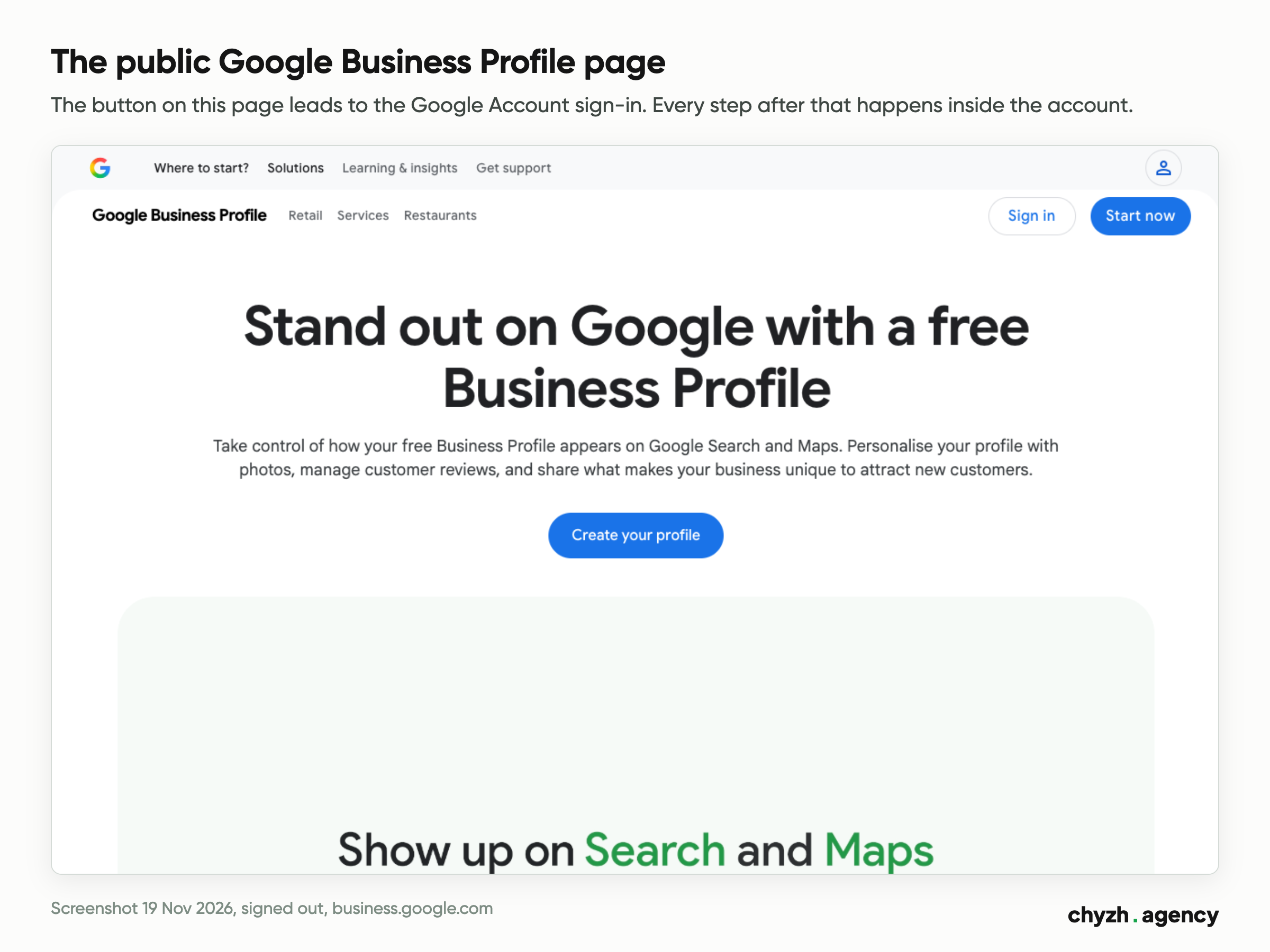
While signed out, anyone can open this page, and its button leads to the Google Account sign-in. Every step after that happens inside the account. We did not capture those steps, because that would mean creating or changing a real profile. So the steps follow Google’s Help Center, and your button labels may differ.
How to move on to verification
Verification makes you the owner of the profile. Without it you cannot change business details such as the name or hours, or interact with customers through the profile. What the Help article “Verify your business on Google” says as of 19 November 2026:
- Google chooses the method. The methods available depend on the business type, public information, region and hours. You cannot change them. Sometimes you need to complete more than one method.
- Options. Phone call or text, email, live video call, video recording, postcard by mail. If video recording is available, Google recommends choosing it.
- Live video call. You need to be at the business and show signage or the street, equipment or products, and your connection to the business, such as entering a staff-only area.
- Postcard. Most codes arrive within 14 days and expire after 30 days. While you wait, do not change the name, address or category, or the code will stop working. Do not request a new code either: that cancels the first one.
- Review. After all the steps, Google usually reviews the information within 5 business days, and occasionally longer.
Do not share the verification code with anyone, including whoever manages your profile. Google representatives never ask for it.
If a duplicate already exists
The Help article “Resolve duplicate profiles & ownership issues” has a separate route for each case:
- You created a second profile for your own verified business. Remove it from your account. Your verified listing is not affected. All content and linked managers of the duplicate are removed with it, so make sure you remove the right profile.
- Maps shows two listings for one business. Suggest a merge through “Suggest an edit” on Google Maps. All merge requests are reviewed. After a merge, reviews from both listings are combined, but replies to reviews may be lost.
- Google wrongly merged two different businesses. Appeal through support. If both businesses serve customers at one address, you will need evidence of separate signage.
- The business changed its name. A minor name change is made in the existing profile. If the name changed so much that the business is effectively new, the old profile is marked as closed and a new one is created (guidelines for representing your business, section on rebranding).
- You forgot which account verified the profile. Recover that account through Google’s account recovery troubleshooter. Do not create a new listing just to get access.
What to check after creation
Go through this list once the profile is verified:
- [ ] In an incognito window, a search by name and city shows one listing with the correct address, phone number and hours. Google notes that changes to business details do not appear in results right away.
- [ ] A search by phone number and address finds no second listing.
- [ ] The primary owner of the profile works at the business. Contractors and staff are added as managers, each with their own account, without sharing a password.
- [ ] The website link leads to the page for this location, and the address and phone number there match the listing.
- [ ] You have a record of which account verified the profile, when, and who has access. This prevents a new duplicate when your marketer changes.
Once the profile appears in search, check how it shows up for your queries in different parts of the city. Our free Google Maps audit does this. It finds the profile by name and city and checks rankings at 25 points around the address, reviews and the website. The report needs the business name, city, query, your name and email.
Where to start today
Start with a Maps search by name, phone number and address. Find your row in the five-situation table and follow the link to Google’s Help Center: that is where the action happens. Prepare the details from the field table before you open the form, and keep the verification code to yourself.
If you would rather delegate the setup, describe your business and city. We start by finding existing listings and access. The profile stays with the owner, and the owner completes verification.
Author: Viktoriia Repetuk, Middle SEO Specialist. Reviewed by: Dmytro Popryadukhin, Head of SEO.
Sources: Google Business Profile Help, raw HTML checked on 19 November 2026; the Ukrainian and Russian pages were compared with the English ones (the pages show no update date): 2911778 “Add or claim your Business Profile”, 12756178 “Resolve duplicate profiles & ownership issues”, 4566671 “Request ownership of a Business Profile”, 13763036 “Business eligibility and ownership guidelines”, 3038177 “Guidelines for representing your business on Google”, 7107242 “Verify your business on Google”, 145585 “Find your business on Google”, 7039811 “Get started with Google Business Profile”, 3403100 “Manage your Business Profile owners & managers”. Screenshots: Google Maps and business.google.com, 19 November 2026, signed out.
Related articles
Why a Google Maps profile gets views but no calls: what views and call clicks...
Rankings flat, clicks down? A 9-step Search Console check to tell AI Overviews from the...
Definitions, a monthly report template and a real shop where organic search brought 9.5% of...